Printing, Copying and Graphics

Buisness Cards

University employees can order personal business cards in the JGU corporate design.

  • The cards are printed in packs of 100 business cards on 10 sheets at a cost of €12.50 (double-sided: €17.50).

Ordering Business Cards:

  1. Open the order form: https://zdv-intern.zdv.uni-mainz.de/scripts/visitenkarten_jgu/
    This form is only available on devices within the Johannes Gutenberg University network (if necessary, you can use a remote desktop connection from outside the network).
  2. Log in with your JGU account and fill out the form.
  3. Check your entries using the preview function.
  4. Correct any errors.
  5. Submit the order.
  6. You will receive an order confirmation by email and a second email as soon as the business cards are ready for collection (within 1 working week).

Picking up Business Cards

  • Pick up your business cards Monday through Friday from 9:00 a.m. to 6:00 p.m. at the ZDV hotline (room 00 151 in the ZDV).
  • So that we can record the costs, please bring your institute copy card (formerly multi-user card), your own card (or Intrakey key), or a private StudiCard with you.

Special Cases

If you need special characters (e.g., Asian) or have other requirements for your business card, please contact us at dtp@uni-mainz.de.

Posted on

Institute Copy Card (earlier Multi User Card)

Institute copy cards can be shared. They can be kept in the office, for example, where they can be borrowed and returned.

These cards are preconfigured by us, i.e., they are permanently linked to a PIN and a billing object/cost center. We register one person for these cards. This person is responsible for the card.

It is not possible to print on public devices with institute copy cards. The print and copy center cannot be used and users cannot view the transactions made with the cards themselves. Only the person registered as the administrator for the cards can do this. Scan2Seafile cannot be used with a multi-user card either. You need a personal print and copy account for this.

The application form for institute copy cards can be found HERE.

Posted on

Notes on Printing and Copying for Employees

JGU employees can print and copy for work purposes on public printers/copiers. For billing purposes, transactions are transferred via the Data Center shop or invoices are issued (for employees of the University Medical Department).

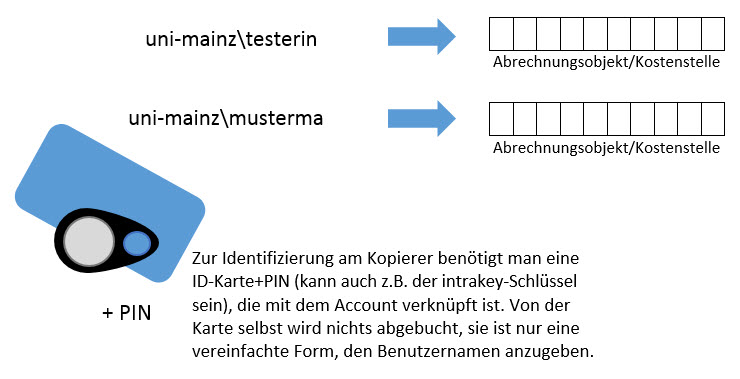
The billing object/cost center is assigned to your JGU account. To log in to the copier, you need an ID card and PIN. This is basically the same as entering your username and password, but it is much faster.

Abbildung: Abrechnungsobjekt/Kostenstelle wird dem JGU-Account zugeordnet. Die Karte dient zur Identifikation.
The billing object/cost center is assigned to your JGU account. To log in to the copier, you need an ID card and PIN.

Each user can have multiple accounts: one for paid credit and one or more billing objects/cost centers. Users can set which account should be charged (paid credit or a business account) at any time at https://drucken.zdv.net/abrechnungskonto. Once set there, the selected setting applies to printing and copying until another setting is made!

Please note: The paid credit balance is always selected as the default setting!

For new Employees

1. New employees must submit a request for official printing/copying in order to have a billing object/cost center assigned for copying for the first time. Link to the request

2. Before using the service for the first time, make sure that the correct account (billing object/cost center) is selected: https://drucken.zdv.net/abrechnungskonto

3. Before using a service terminal for the first time, assign an ID card+PIN to your JGU account so that you can log in to the copiers. You can read how to assign an ID card+PIN HERE(german only).

Small FAQ

Yes. This is not a problem, as the card is only used to identify the user when logging in to the devices (printer/copier). The credit balance on the card is not affected. You must specify which account is debited (the cost center or the credit paid into the print account itself) at https://drucken.zdv.net/abrechnungskonto.

No, this is not necessary, as the information about the billing object/cost center is not assigned to the card, but to the JGU account. However, you must specify which account will be charged (which cost center or individual credit balance) before sending a print job at https://drucken.zdv.net/abrechnungskonto.

Employee accounts become inactive after a certain period of time following departure (depending on the type of employment; for fixed-term contracts, this is at the end of the contract). This also deactivates printing and copying privileges. However, you can also inform us of the departure, in which case the privileges for the relevant cost center/billing object can be actively deleted. To do so, the person responsible for copy cards at your institute simply needs to send an email to kopierer@uni-mainz.de, stating the relevant JGU account and the billing object/cost center.

If you change jobs within the university, your account will normally remain active. Please inform us when you leave so that we can delete your printing and copying permissions for the relevant billing object/cost center.

This message appears when the credit account is selected for payment but there is insufficient credit for the current job. Employees normally print/copy via a billing object/cost center, but there is also the option of depositing credit yourself. This is preselected by default. Before using the new billing system for the first time, you must therefore select an assigned billing account in the Print and Copy Center (https://drucken.zdv.net) via the Account Selection menu item. Only then will the selected account be debited when copying.


Posted on

Prices for Printing and Copying

Since of January 1st, 2023 the following prices apply for printouts and copies made on public printers and copiers operated by the Data Center:

A4 A3 Scanning (A4, A3)
black/white 4 Cent 8 Cent 1 Cent
Colour 18 Cent 36 Cent 1 Cent


Scanning til DIN A3

At all Printers/Copyiers which can scan: 0,01 €/ Scan (A3/A4, b/w, Colour)


Poster Print / Roll-Up

Format  Normal Paper

Picture Paper/

Synthetic-Paper


Flag Fabric/

Self-adhesive Foil


 DIN A2   5,00 €   6,00 €   8,00 €
 DIN A1   8,00 € 11,00 € 14,00 €
 DIN A0  15,00 € 20,00 € 25,00 €
 Special Format  15 €/ m² 20 € / m² 25 € / m²


Poster cutting excess length surcharge:

1,6 m bis 2,5 m Poster length + 2,50 €
 ab 2,5 m Poster length will not be cut, upon aggreement

Note: Posters will be stored for up to three months. If you do not collect them, the posters will be destroyed after three months. The costs incurred will be charged to the client.


Roll-Up:

85 x 200 cm 100 x 200 cm
Roll-Up Print & buying a Stand 110,00 € 125,00 €
Roll-Up- Print  50,00 € 55,00 €
Roll-Up Print & borrowing a Stand    62,00 € 70,00 €

Express Order Poster

Format  Normal Paper

Picture Paper/

Synthetic-Paper


Flag Fabric/

Self-adhesive Foil


 DIN A2 15,00 € 16,00 € 18,00 €
 DIN A1 18,00 € 21,00 € 24,00 €
 DIN A0 25,00 € 30,00 € 35,00 €
 Special Format 25 €/ m² 30 € / m² 35 € / m²

Note: Posters will be stored for up to three months. If you do not collect them, they will be destroyed after three months. You (the person who placed the order) will be billed for any costs incurred.

Poster multiple Print Discounts

The following special prices apply to multiple prints of a single file when printing posters:

Format 1 Copy up  4 Copys up 10 Copys
Normal Paper DIN A0 15,00 € 12,00 € 9,00 €
Normal Paper DIN A1 8,00 € 6,50 € 5,00 €
Normal Paper DIN A2 5,00 € 4,50 € 3,50 €
Picture Paper/Synthetic-Paper DIN A0 20,00 € 17,00 € 14,00 €
Picture Paper/Synthetic-Paper DIN A1 11,00 € 9,50 € 7,50 €
Picture Paper/Synthetic-Paper DIN A2 6,00 € 5,00 € 4,00 €

Note: Posters will be stored for up to three months. If you do not collect them, the posters will be destroyed after three months. The costs incurred will be charged to the client.


Laminating/ Binding

Format Preis
Hot Glue binding of Dissertations, Doctoral Theses, etc. DIN A4   1,50 €
Laminating (small format) DIN A4
DIN A3
  1,00 €
2,00 €
Laminating (big format)
incl. cutting
DIN A0
DIN A1
DIN A2
Sonderformat
15,00 €
9,00 €
6,00 €
15 €/ m²


Learn more: Hot Glue Binding/Softcover-Binding for all Dissertations (german only)

Buissness Cards

100 printed on one side  12,50 €
100 printed on both sides  17,50 €
Posted on

Adding a Printer

Adding a Data Center Printer

If the printer with the name \\jgu-ps-1.zdv.net\Drucken is not listed under availabel printers you need to add it manually. The following procedure should work in all current windows versions. The only requirement is that your computer needs to be inside the universitys domain, connected to its WLAN or connected via VPN.

Click on the Windows button (the button with the flag/window in the bottom left corner on the keyboard.)


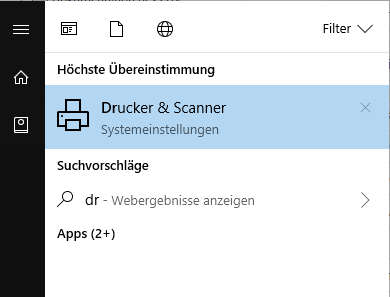
Write printer in the input field. In the following the procedure will be described for Windows:

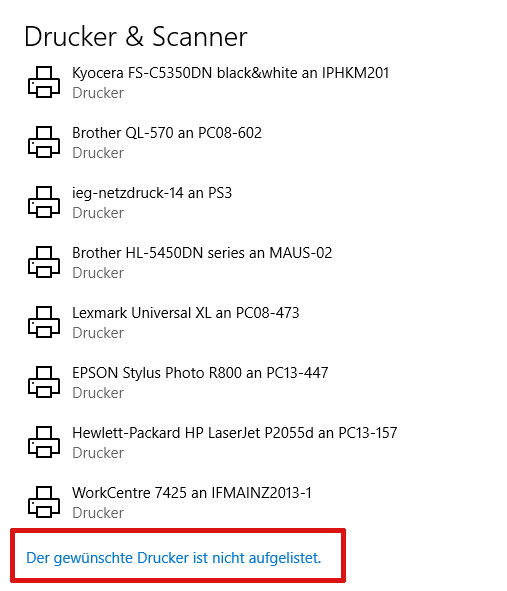
You will see the option "Printer & Scanner" (System settings). Click on it.

Afterwards an new window will open.

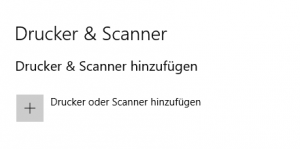
Click on the + symbol (adding Printer & Scanner)

Afterwards all availabale printers and scanners will be listed:

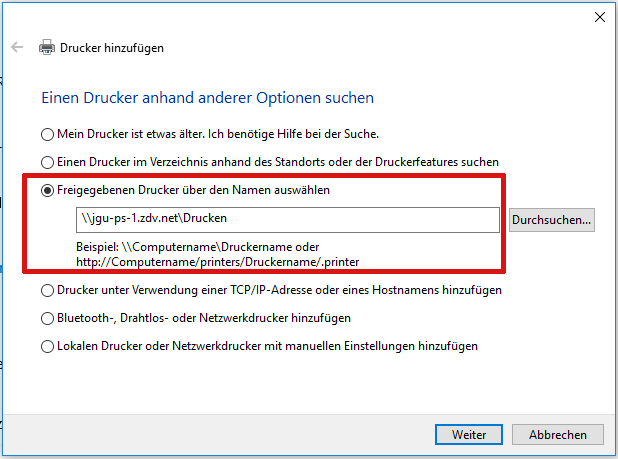
Click on (all the way down under the list of all scanners and printers) "The desired Printer is not listed". An additional window will open:

Set the selection point on choosing freed printer threw the name. In this field you will write:

\\jgu-ps-1.zdv.net\Drucken

Click on continue. The installation will take a second, then following notification will appear: Printer jgu-ps-1.zdv-net was added successfully.

Click on continue. Now you will have the possibility to decide if the added printer should be set as the default printer. Default printer means preselection - the printer which will be chosen at first when you will give a print order.

Lastly click on complete. The printer is now installed.

Note: These instructions are firstly for computers within the domain or which can be found in the PC-Pools. Fundamentally you can also add the printer on your private computer (notebook connected via WLAN or computer via VPN).

Adding Printer on a private Computer

Open the Start menu and search for the Run program.
Start the program and enter the printer name \\jgu-ps-1.zdv.net\Print in the input line.
Confirm your entry. You will now be asked for the username and password of your JGU account.
Enter your username in the format uni-mainz\username.

If another local user is entered, click on more options and
enter the correct username as described above.


Posted on

Request for Refund of Printing/Copying Costs

If you would like to be refunded for printing or copying costs, please submit a request.

Submit a Request

1. Log in to your print and copy account: https://drucken.zdv.net
2. Enter the username and password for your JGU account.
3. Click on the menu item latest print jobs in the left-hand column.
4. If the print or copy job for which you would like to request a refund is not visible, first click on the filter button.
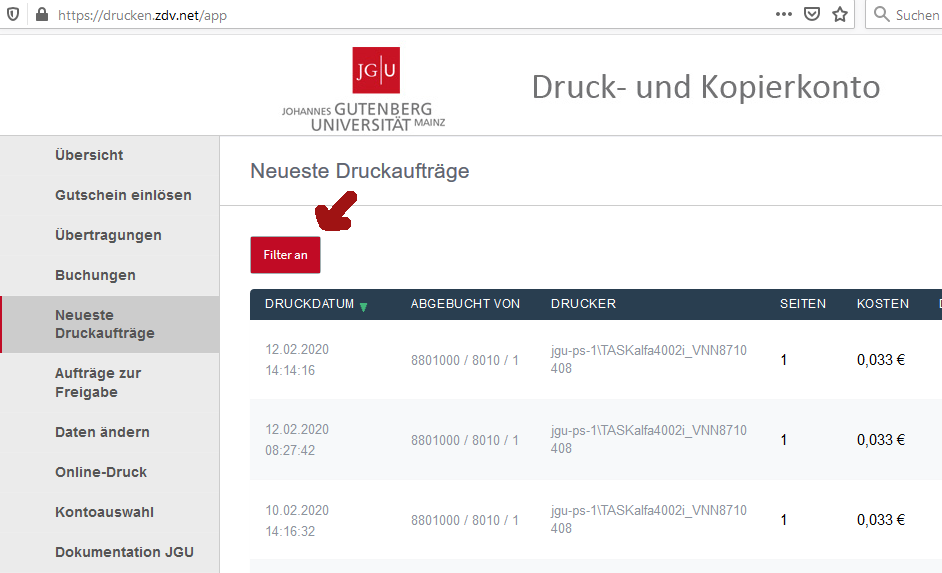
5. A window will open. Click reset.
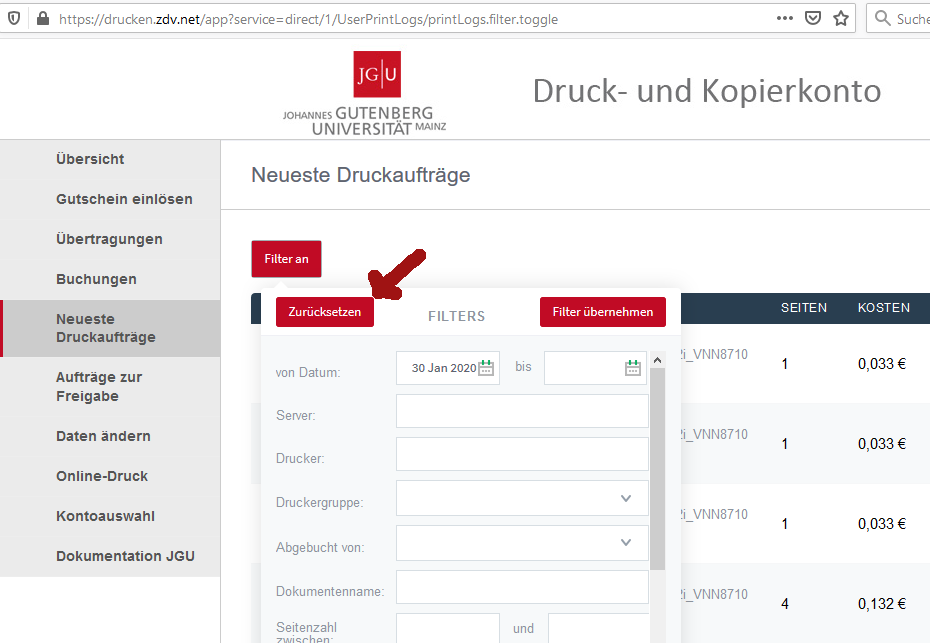
6. You will then see a list of all your print/copy jobs. Select the print/copy job for which you would like to request a refund from this list. Click on request refund.
7. A form page will open where you can request a refund of the total amount or a partial amount (to be specified). Please also provide a reason for the refund.

Notes on Malfunctions and Multiple Jobs

If several identical/similar jobs are not sent due to a problem (e.g., toner empty, paper empty, paper jam), please delete the jobs that are still in the queue. You can cancel them on the device itself. This ensures that they are not automatically printed as soon as the problem is resolved (e.g., refilling toner or paper).

If multiple identical/similar jobs are sent and the first job cannot be processed due to one of the above problems, we will only refund the first job. We will not refund subsequent jobs that you do not delete in time and that are printed after the problem has been resolved.

Deleting Print Jobs that have already been released on different Devices

Epson (WF-C17590)

1. If you have already released the print job but now want to cancel it, press the printer icon at the top left of the screen.
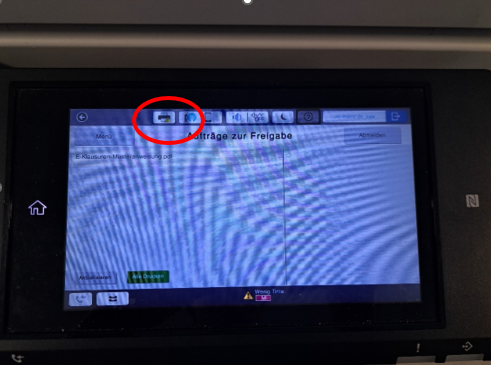
2. The printer status monitor opens. Tap on job status on the left-hand side to access the overview of released print jobs.
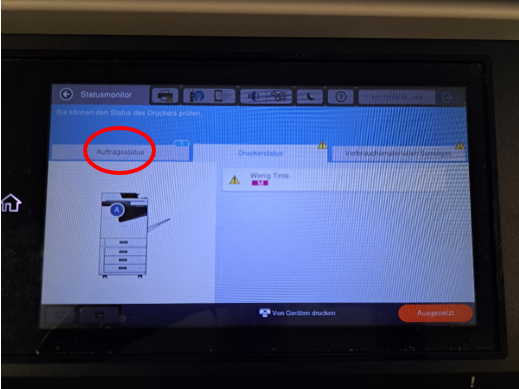
3. Tap on the print job you want to cancel so that it is highlighted in blue, as shown in the image. At the same time, the options details (blue field) and delete (orange field) will appear above the print job list. To cancel the corresponding print job, tap on delete. (If you want to cancel all print jobs, you can also tap cancel all (gray box) on the left side.)
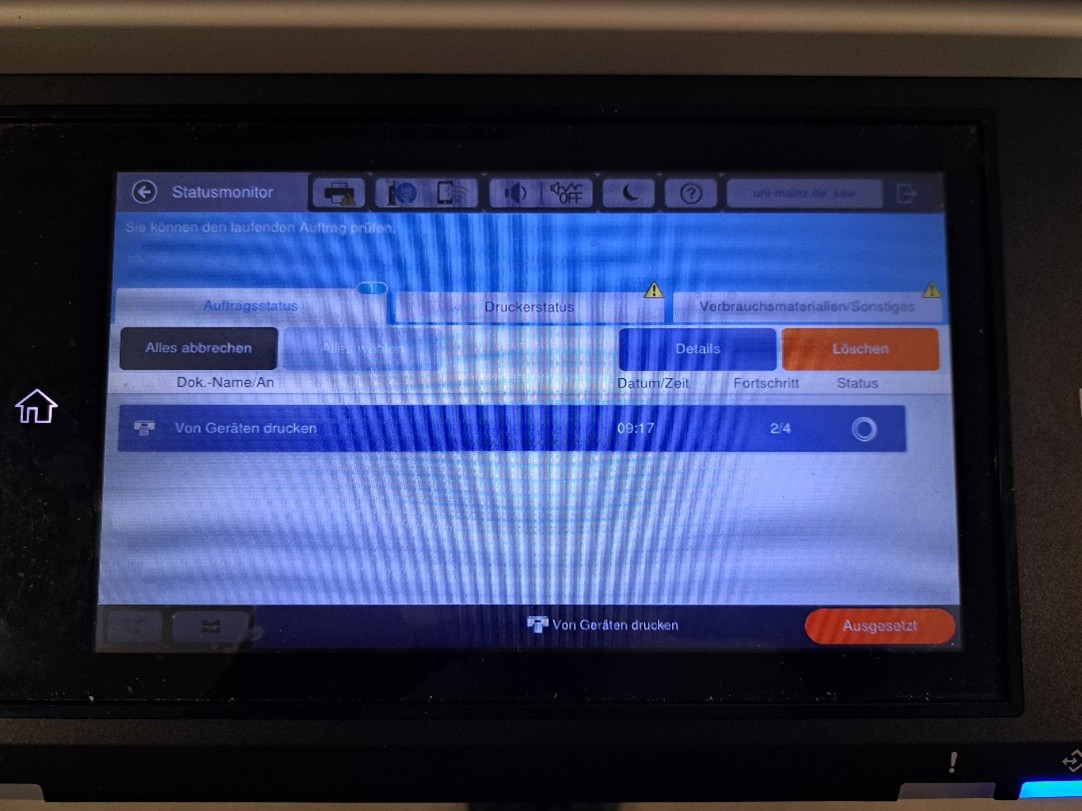
4. A dialog box will then open in which you must confirm that you want to delete the print job. To do this, tap yes.
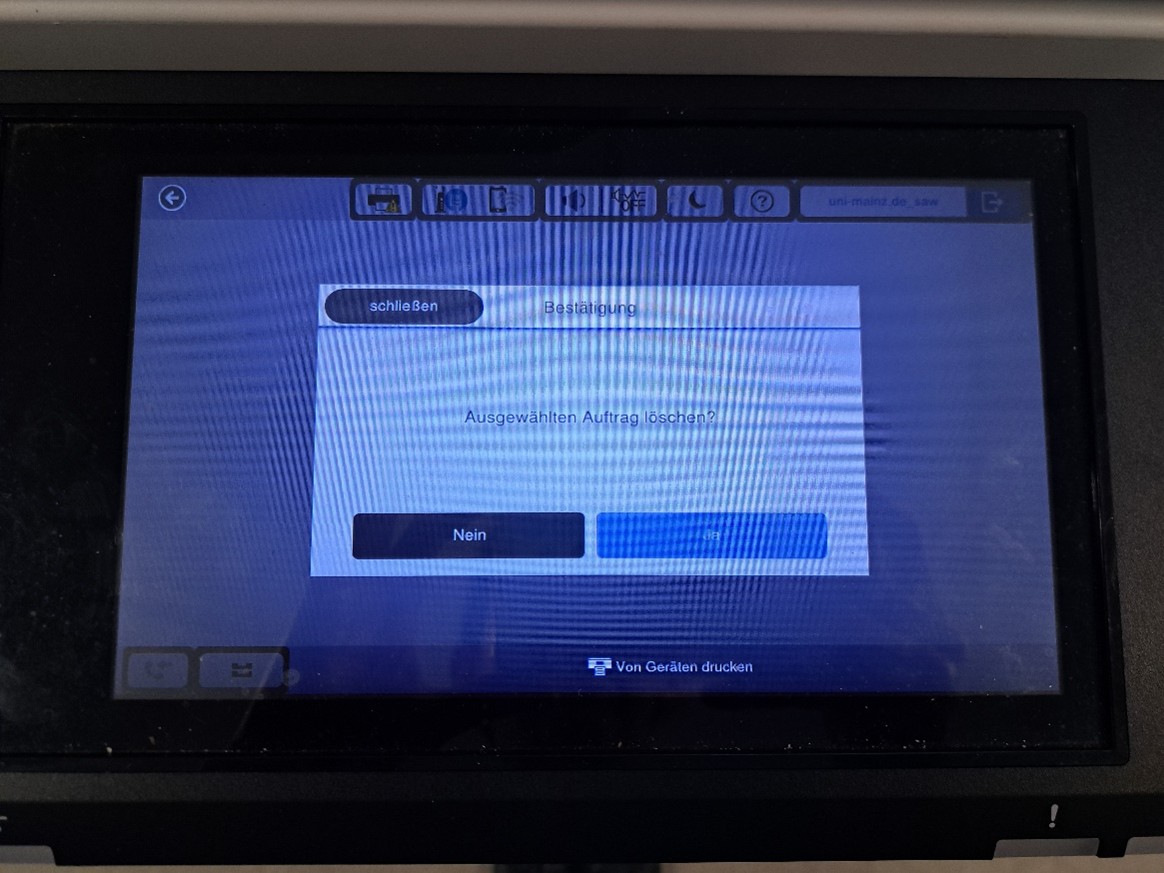
Kyocera (TASKalfa 4002i)

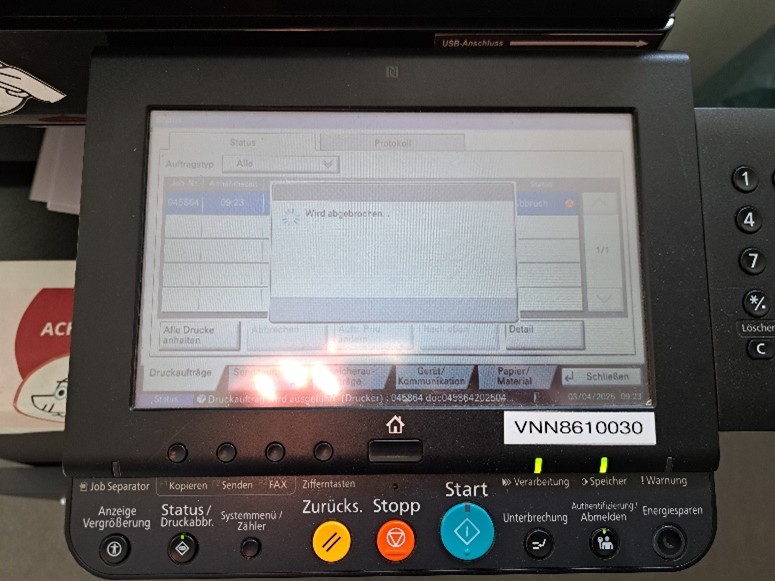
1. If you have already released the print job but now want to cancel it, press status / cancel print in the lower button bar.
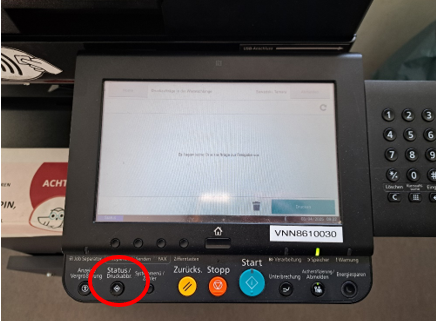
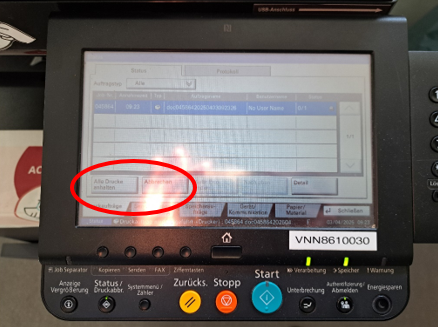
2. An overview of the jobs that have been released for printing will open. Tap on the print job you want to cancel so that it is highlighted in blue, as shown in the image. Then tap cancel directly below the print job list. (If you want to cancel all print jobs, you can also tap pause all printing.)
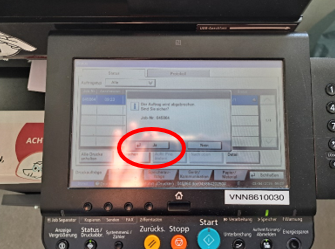
3. Once you have confirmed the cancellation with yes, the order will be canceled.
Xerox (AltaLink C8145)

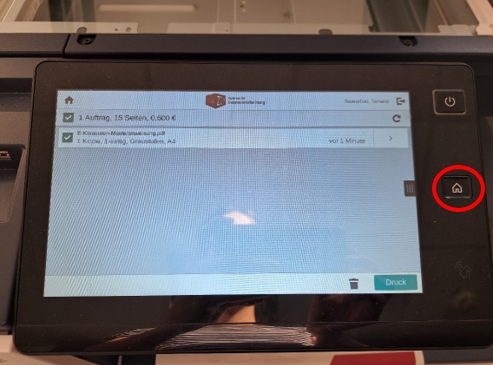
1. If you have already released the print job but now want to cancel it, press the home button on the right side of the screen.
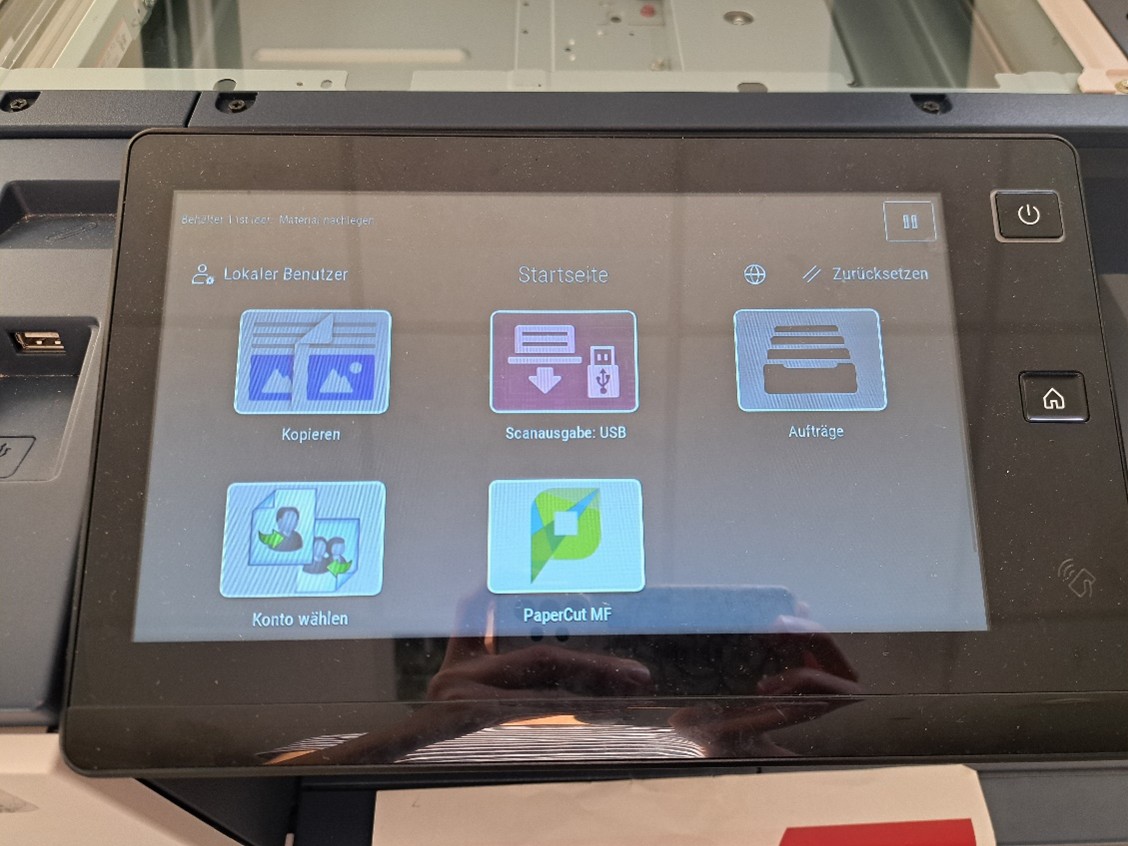
2. The printer's home screen will open. Tap jobs on the right side of the screen.
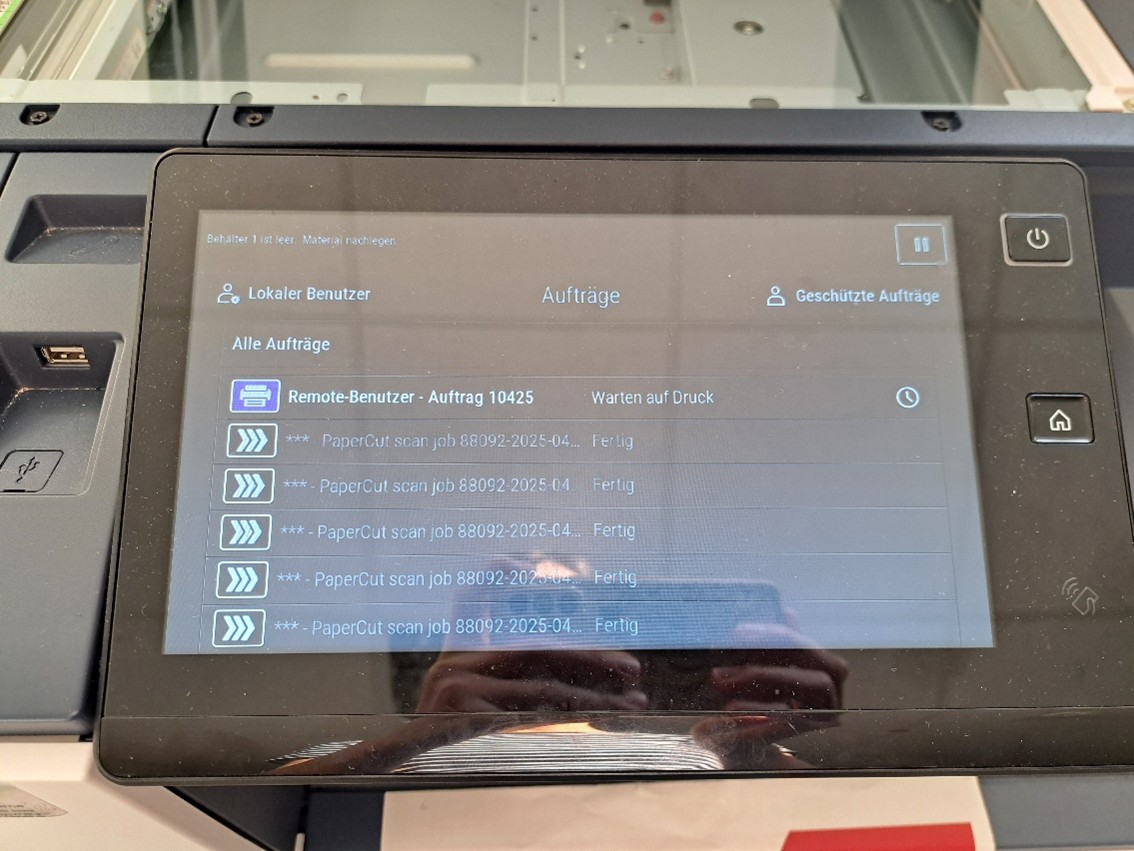
3. A list of jobs that have been released for printing will then open. The respective print jobs can be identified by the blue printer icon. Then tap on the print job you want to cancel.
4. A small dialog box opens with the options delete, job progress, and job data. To cancel the corresponding print job, tap delete.
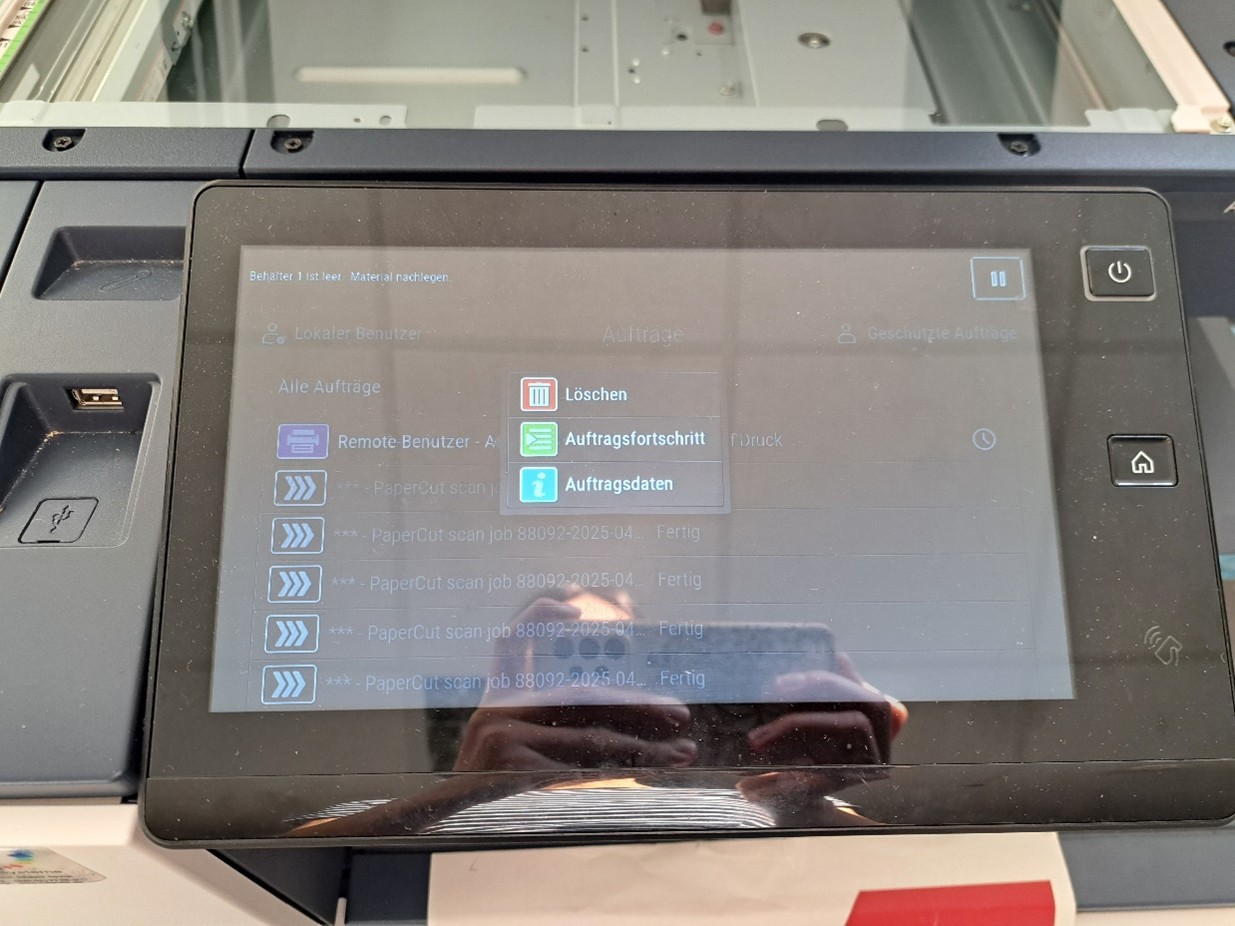
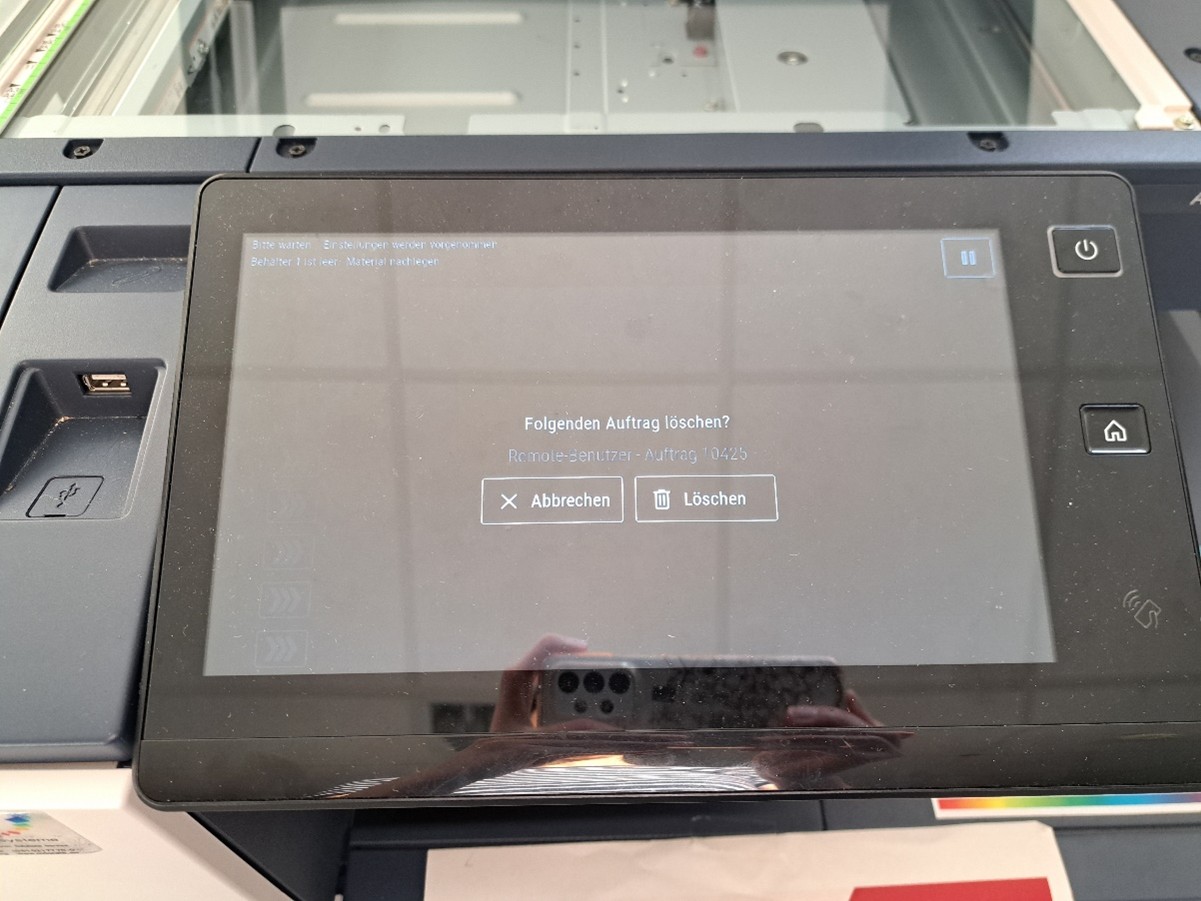
5. Another dialog box will then open, in which you can confirm the cancellation of the print job by tapping delete again.
Xerox C410

1. If you have already released the print job but now want to cancel it, press the home button on the bottom menu bar of the screen.
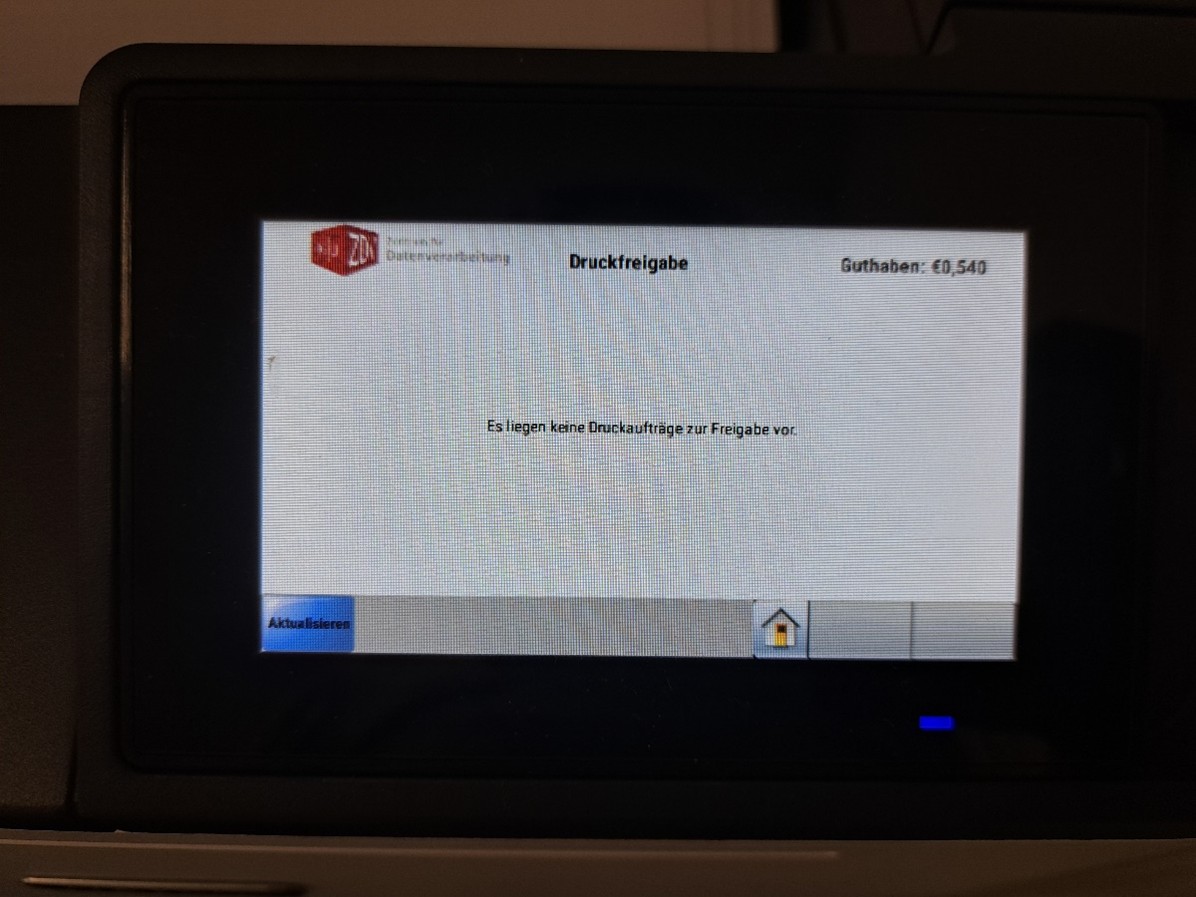
2. The printer's start menu will open. Tap on the gray field labeled “job queue.

3. A list of jobs that have been released for printing will then open. Tap the three lines in the upper left corner to open the menu.
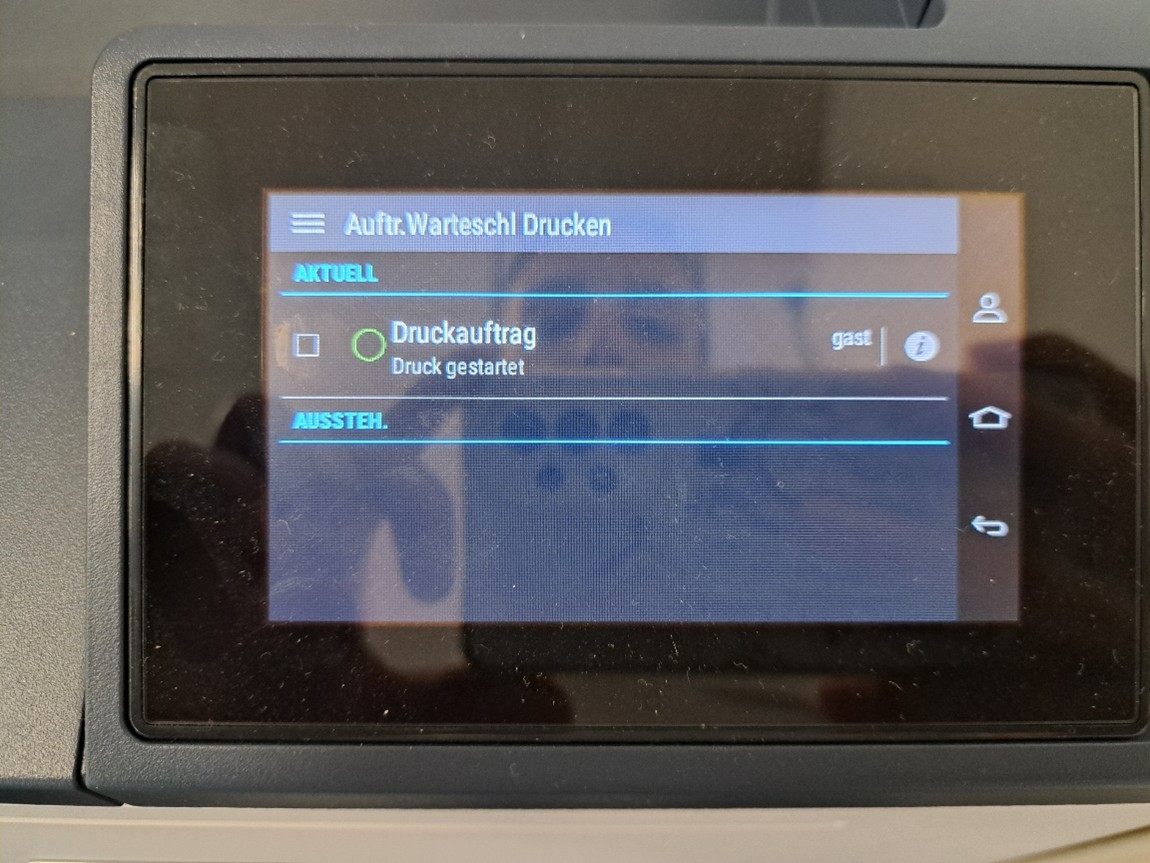
4. In the menu bar that opens on the left, tap overview.
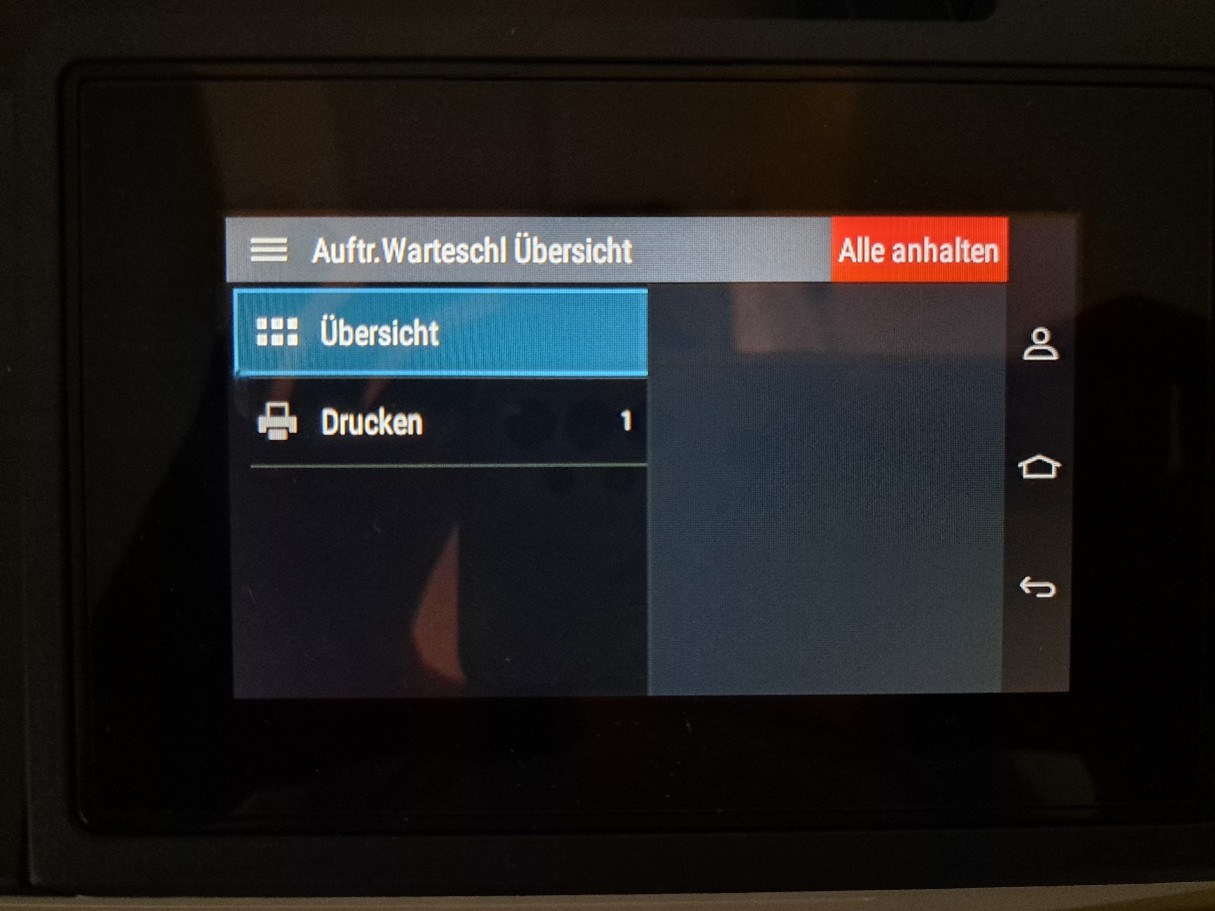
5. This will open an overview of all jobs currently being printed. A red box labeled stop all will also appear in the upper right corner. Tap the corresponding box.
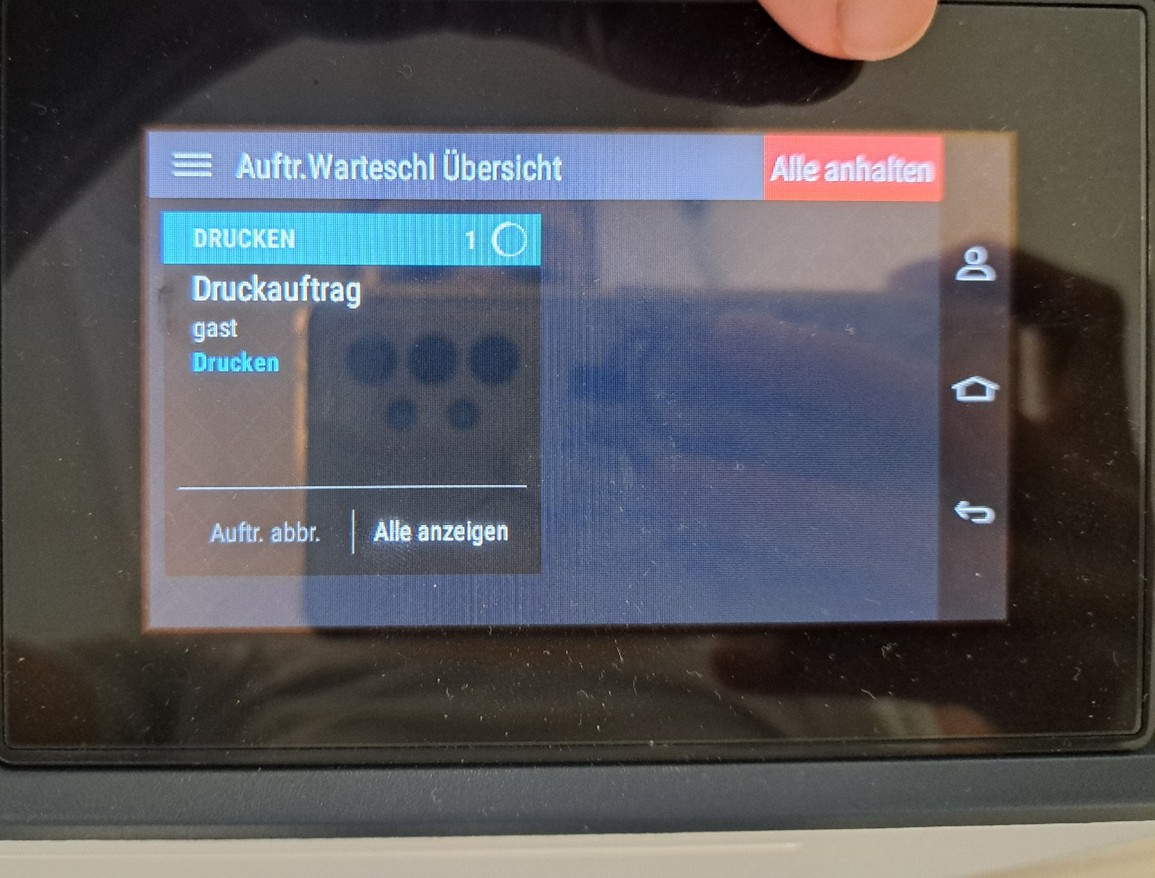
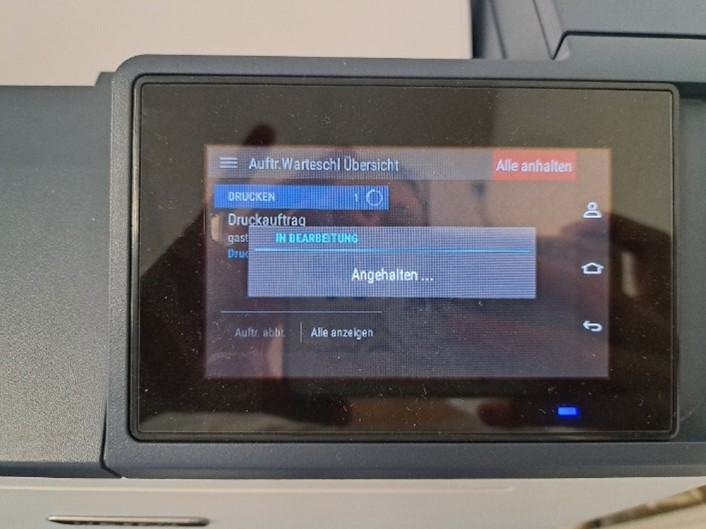
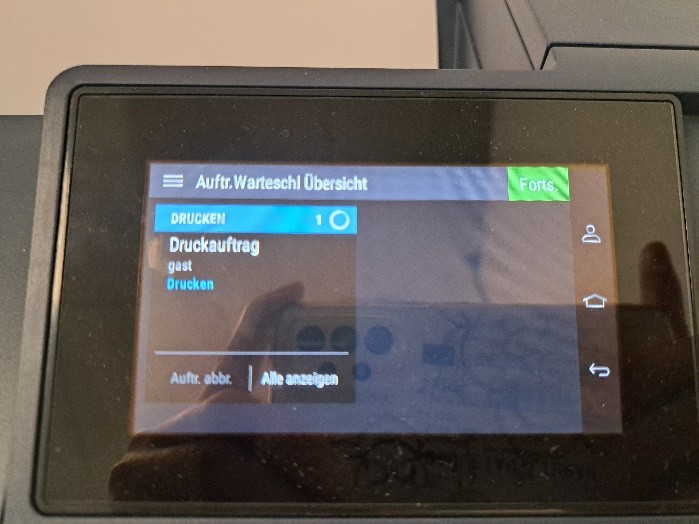
6.The print job is paused and the red box in the right-hand corner changes to a green box labeled resume so that the job can be resumed if necessary.


Posted on

Printers and Copiers on Campus

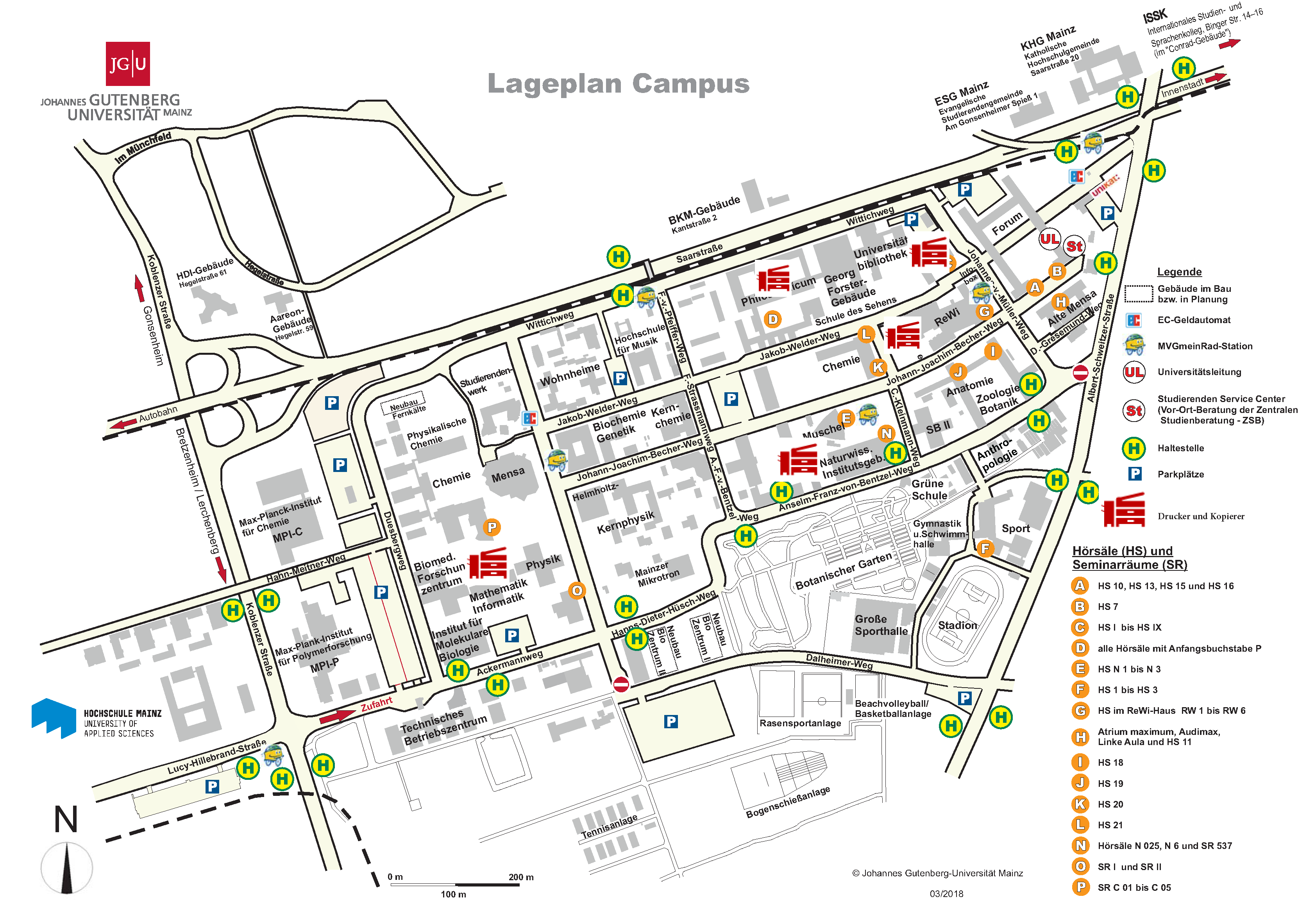
There are 80 printers and copiers on the JGU campus.

The overview shows the most important locations.

  • Central Library: Jakob-Welder-Weg 6
  • Philosophicum: Jakob-Welder-Weg 18
  • Departmental Library for Mathematics, Computer Science, and Natural Sciences: Duesbergweg 10-14
  • Departmental Library for Law and Economics: Jakob-Welder-Weg 9
  • Data Center (Faculty of Natural Sciences): Anselm-Franz-von-Bentzel-Weg 12

Posted on

Data Center takes over Services of the JGU Main Printing Office

In future, services provided by the JGU main printing office will be taken over by the Data Center.

This includes, in particular, the printing of exams, seminar documents, brochures, and flyers.

The printing office team and the Data Center are currently preparing for the upcoming move.

Until the final takeover at the end of the year, the printing office will continue to be available at its familiar address (Johann-Joachim-Becher-Weg 1).

Further information is also currently available on the main printing office website:
https://www.verwaltung.zentrale-dienste.uni-mainz.de/zentraldruckerei/


More news from the Data Center → may be found here.

Important Changes to the Poster Printing Service

The process for ordering posters at the Data Center (ZDV) was significantly simplified in mid-May 2025. The following changes have been made to this service:

We are simplifying terms and making collection easier

Before you order a poster, first clarify whether you want to pay with your official print and copy account or with an institute copy card (formerly multi-user card). You can select one of these payment accounts on the order page.

  • Institute copy card: In future, we will call the multi-user card the institute copy card.
  • Buisness print and copy account: This refers to your institution's print and copy account. Your institution pays for the job.
  • Privately deposited credit: You pay for the poster from your privately deposited credit.

You will receive an e-mail when your poster is ready. You can then collect it from the ZDV hotline. You no longer need a copy card for this, as payment is made automatically via the previously selected payment account.

Prior registration required

An essential prerequisite for printing posters or business cards in the ZDV is registration in the ZDV Shop. As long as you are not registered, you will not be able to order posters. Please register in good time so that we can process your orders as quickly as possible:
https://www.en-zdv.uni-mainz.de/application-for-business-printing-and-copying/

Ordering posters and support

Simply order posters at https://poster.zdv.uni-mainz.de/
If you have any questions, please contact the ZDV secretariat (zdv-office@uni-mainz.de ).

Find out more: https://www.en-zdv.uni-mainz.de/poster-printing/#Order_Posters_and_Pay_instantly


More news from the Data Center → may be found here.

Application for Business Printing and Copying

New employees who wish to print for business purposes at the university must first submit an application via a billing object/cost center.

  1. Download: Application for business printing and copying on public devices
  2. We will make the desired assignment. This can take 2-3 days.
  3. The applicant selects the requested accounting object/cost center at https://drucken.zdv.net/abrechnungskonto.
  4. Save your entry. The setting is valid until you make another setting.

Note: This process is currently being revised and will be available digitally in approx. 2 months.

Posted on