

Using VPN you can connect to the university network over the Internet. If you use VPN your computer behaves the same way as if it is physically connected to the university network. This way you can use the services that are only available from inside the university network.
VPN using IPsec/IKEv2 with Strongswan (recommended)
Installing packages
On Debian/Ubuntu, please ensure that the packages strongswan-starter und charon-systemd are not installed:
sudo apt remove strongswan-starter charon-systemd
Install the necessary packages for Strongswan
Debian/Ubuntu:
$ sudo apt install network-manager-strongswan libcharon-extra-plugins
For Ubuntu, the "universe" distribution component must be enabled beforehand:
$ sudo add-apt-repository universe
In case of Ubuntu 25.10, the package libstrongswan-extra-plugins must be installed additionally.
$ sudo apt install libstrongswan-extra-plugins
Fedora:
$ sudo yum install NetworkManager-strongswan-gnome
Note: We cannot support you with technical problems using Fedora.
Afterwards you have to restart at least the NetworkManager service (if in doubt or if the package libstrongswan-extra-plugins has been installed, restarting the whole system will also help):
$ sudo systemctl restart NetworkManager.service
Necessary manual configuration
Now create the configuration file charon-nm.conf with the content charon-nm { plugins { eap-peap { load = no } } } e.g. by
Ubuntu:
$ echo "charon-nm { plugins { eap-peap { load = no } } }" | sudo tee /etc/strongswan.d/charon-nm.conf
Fedora:
$ echo "charon-nm { plugins { eap-peap { load = no } } }" | sudo tee /etc/strongswan/strongswan.d/charon-nm.conf
Create and configure connection
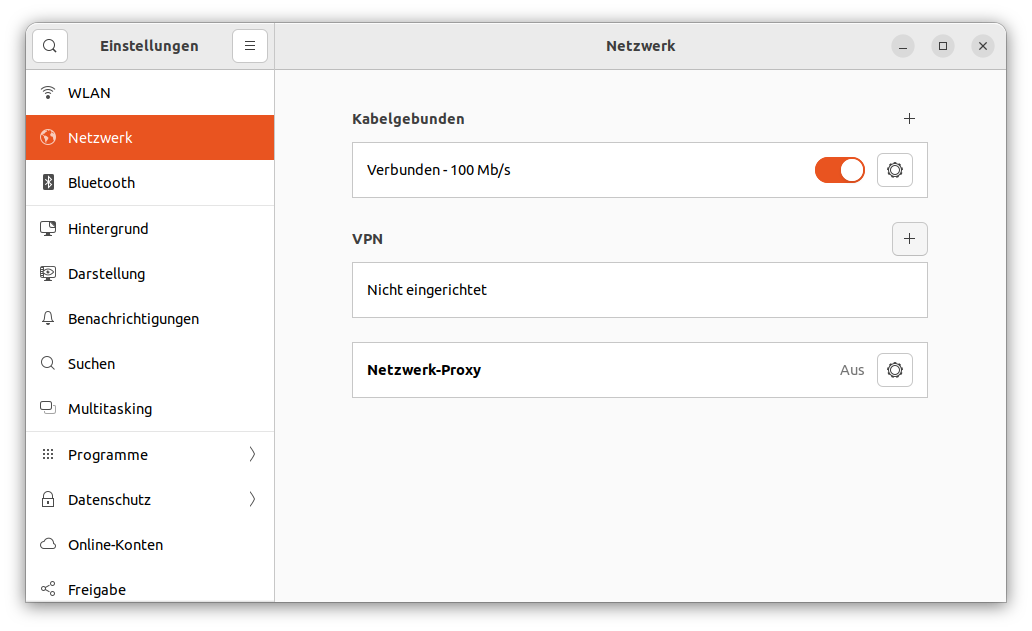
Open the network settings dialog (Settings -> Network -> VPN) and add a new VPN connection by clicking on the plus symbol +:
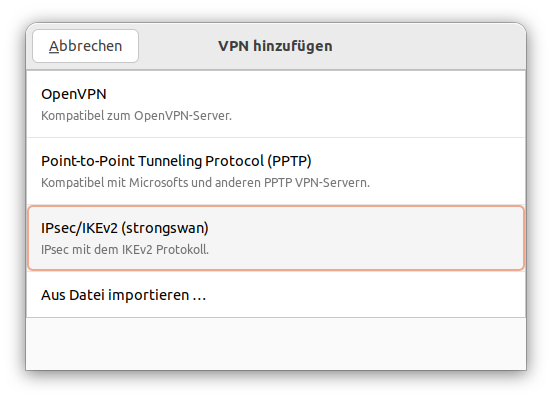
Select IPsec/IKEv2 (strongswan) as type:
Configure the following parameters:
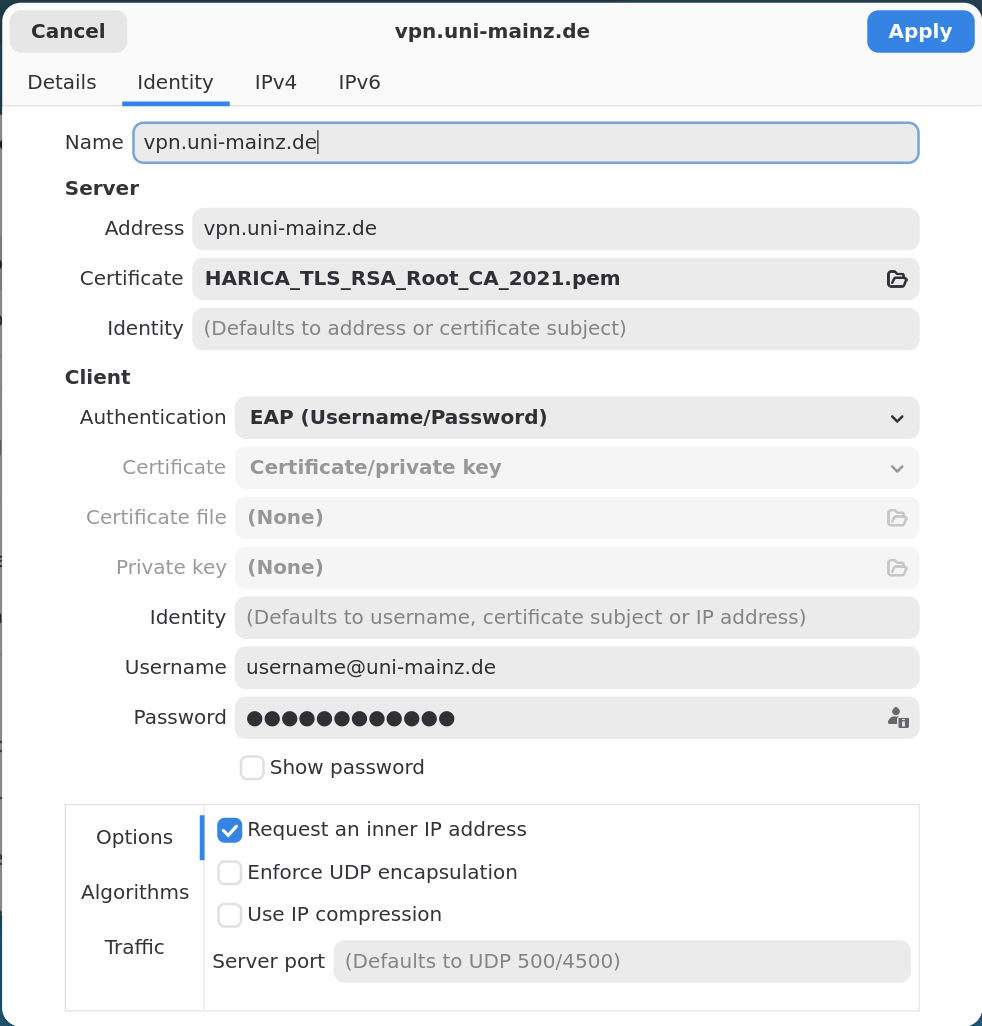
- Server -> Address:
vpn.uni-mainz.de- Server -> Certificate:
HARICA_TLS_RSA_Root_CA_2021.pem(see below)- Client -> Authentication:
- EAP (Username/Password)
- Client -> Username:
- The username of your JGU account followed by
@uni-mainz.de
(cf. Username on https://account.uni-mainz.de/) - Client -> Password:
- The password of your JGU account
- Options:
- Request an inner IP address
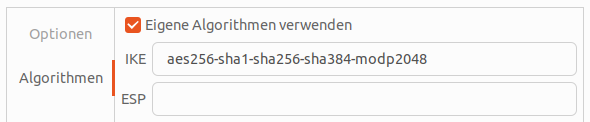
- Algorithms:
- Enable custom algorith proposals
- Algorithms -> IKE:
aes256-sha1-sha256-sha384-modp2048
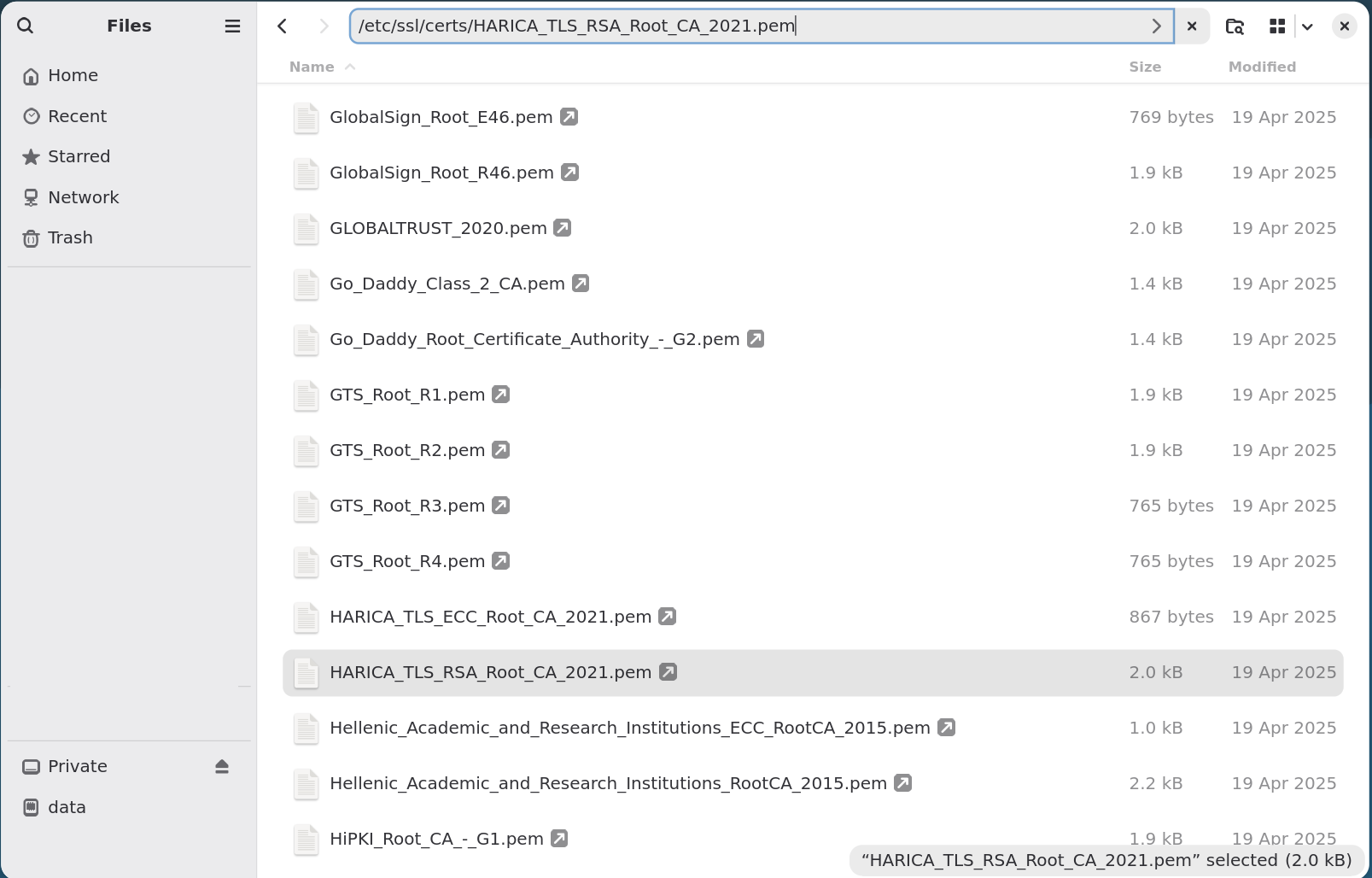
When selecting the server certificate, press STRG+L and enter the following path:
/etc/ssl/certs/HARICA_TLS_RSA_Root_CA_2021.pem:
Zertifikat nachinstallieren
The certificate of the currently used Certificate Authority can be found on https://repo.harica.gr/rep_dyn.php!
The required certificate is called: HARICA TLS RSA Root CA 2021
(This should normally already be in /etc/ssl/certs/HARICA_TLS_RSA_Root_CA_2021.pem)
Download the certificate, and remember where you saved it. You need this certificate each time you connect to eduroam, so it's good practice to save it somewhere else than your downloads folder. Otherwise it may get deleted accidentally.
Connect
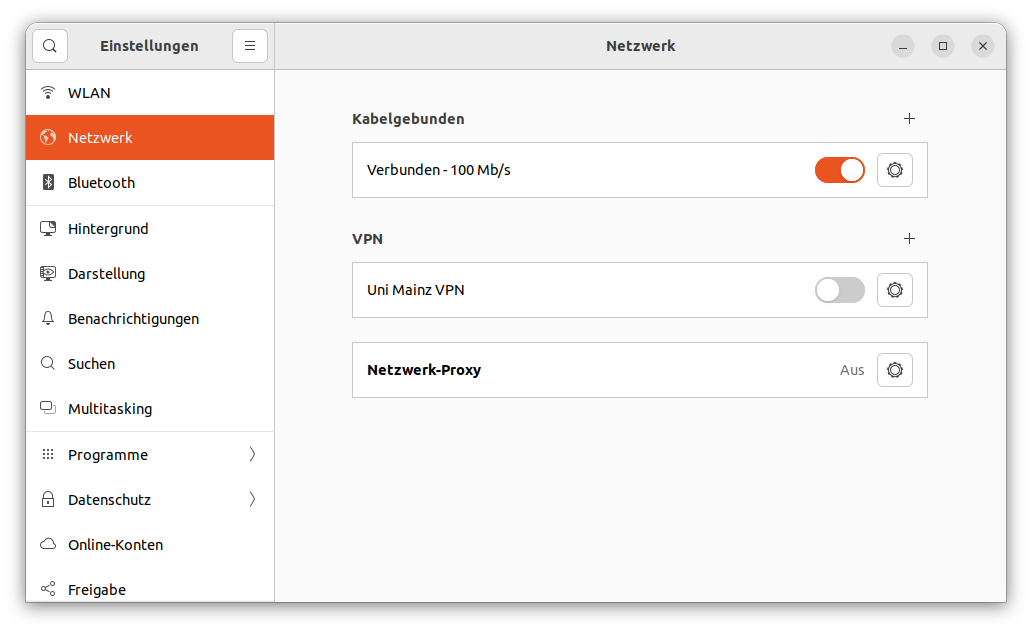
Click Apply and then establish the connection by clicking on the toggle button:
If you encounter problems creating and configuring the connection, try the program nm-connection-editor, too.