

Assigning an ID card or Intrakey
This option is rarely used anymore. It applies to cards that are already in circulation or to employees' Intrakey keys. Students who are new to JGU no longer receive cards.
If you would like to assign a different card to your JGU account (e.g., because the one originally assigned has been lost), simply follow the same procedure as for the initial assignment.
- At the service terminal, click on Assign Card (Karte zuordnen) and you will get the instzruction to hold youre card (Intra Key) on card reader.
- Sign in with your JGU account.
- You will be asked if you want to assign a new card.
- Click on Yes (Ja) and the card will be assigned to your JGU account.
Notes
- You can only assign one card.
- You will receive a notification if the card is already assigned to a different account.
Removing the card from your JGU account
If you want to remove a card from your JGU account without assigning a new one (e.g. when you have finished your studies), choose Remove Assignation (Zuordnung entfernen) at the service terminal.
If requested hold your card on the card reader and log in. The assigned card will then be removed.
Stocking up your printing credit
You receive a ZDV bonus of 1.50 € per semester. Everything you want to print that is receeding the amount you will have to stock up your printing credit.
With the Printing- and Copy-Card
Requirements: You need the Studierendenwerk Mainz payment app.
Book the money from your Studierendenwerk Mainz payment app to your print and copy account. We will explain how it works:
- Make sure you already have credit in your payment app.
- Tap Add print credit at one of the service terminals.
- Scan the shown QR code with the payment app of the Studierendenwerk Mainz.
- Enter your JGU account login name and password.
- An overview will be displayed:
App credit/card value: 0,00*.€
Desired deposit:
Print and copy credit:
Data Center bonus:
Total:
*0,00 € appears at first. The actual amount is only displayed after the QR code scan.
- Scan the QR Code with the payment app. Your app credit will be shown in the overview.
Deatiled explanation:
With Studicard
- Ensure that you already have credit on your printing and copying account.
- Tap on add printing credit at one of the service terminals.
- Hold your student ID card up to the card reader.
- Enter the username and password for your JGU account.
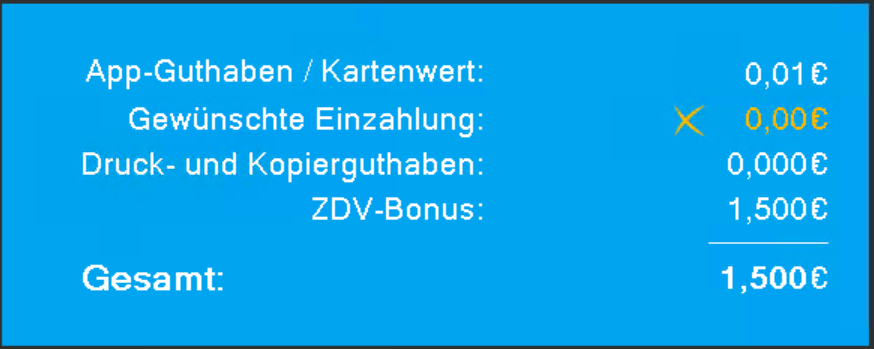
- An overview will show you the following:
App credit/card value: 0,01.€
Desired deposit:
Print and copy credit:
Data Center bonus:
Total:
- To make the desired deposit, use the blue tiles with the corresponding amounts of money.
- Then tap on book (buchen). The new total account balance will be displayed and the amount will be transferred to your print account.
- If your student card does not have sufficient funds, you will receive a corresponding notification.
- Log out and don't forget to take your card(s) with you!
Transferring money back to your Studicard
You can transfer your credit from your print account back to your Studicard or the Studierendenwerk's Bezahlp app, for example if you have finished your studies.
- Tap on the transfer money (Geld rückbuchen) tile.
- Scan the OR code displayed using the Studierendenwerk's payment app or hold your card up to the card reader.
- Log in with the username and password of your JGU account.
- Your paid credit will be displayed.
- Tap on ok if you want to transfer your credit back.
- Don't forget to take your card with you!
Note: It is not possible to transfer back partial payments. It is also not possible to transfer the bonus of the Data Center to your card.