
The ZDV provides SPSS 29 for SPSS statistics and analyses.
Unlike SPSS 23, under the terms of the licence, students and staff can install SPSS 29 on their personal devices while working from home.
SPSS 29 for Working from Home
- Authorisation to use the programme is verified when it contacts the licence server and logs in upon startup.
- The licence server can only be accessed from the university network. This means that you cannot use SPSS 29 unless you have a VPN connection to the university network.
- Make sure you activate the VPN connection before you start installing.
- Additionally, you will require administrator rights on the computer on which you wish to install SPSS 29.
SPSS 29 for Use on Campus
- Use SPSS 29 on your workstation on campus. If all the available licences are in use, switch to SPSS 23. This is available via the ZDV apps https://apps.zdv.uni-mainz.de.
Troubleshooting: What to do if SPSS crashes after a short time.
SPSS will only run properly if one of the installed graphics cards is active. You can achieve this by doing the following:
- Turn off the computer, unplug all the monitors except the main one, then restart the computer.
If that doesn't help, try this:
- In Device Manager, disable all graphics cards except one. Then restart the computer. Note that the graphics card that has not yet been disabled must be connected to a monitor. You will need administrator privileges to complete this process.
Note for Mac devices
- You may experience download issues when using the Safari browser. Please try downloading it again using Chrome.
Notice for current users of SPSS 27
- As its licence has expired, SPSS 27 will no longer be available as of 1 November 2024.
Therefore, you should uninstall this version from your computer before installing SPSS 29. It is not possible to upgrade.
It is not possible to use SPSS 29 without a VPN connection. If you are not already using a VPN to access certain University Library databases, for example, you must set one up now. Instructions for various operating systems can be found at the following link:
Activate your university VPN. Then download the installation file for your operating system. Right-click on the relevant link and select 'Save As' or 'Save Link As...' or select 'Download Link' or a similar option from the context menu).
Windows: https://seafile.rlp.net/f/dcddde28fc7642728e9c/? dl=1
Run the installation file.
- Windows/Mac: Double-click
At the start of the installation, click “Next” to confirm the following steps.
- Accept the license agreement
- Specify the folder where SPSS 29 should be installed (you can usually accept the suggested location)
- Click “Install” to start the installation
- Before the installation is complete, the following message appears:
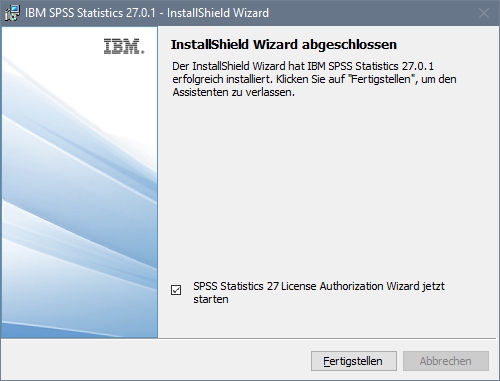
Please ensure that the 'Start the SPSS Statistics 29 licence authorisation wizard now' box is ticked.
- In the following window, select “License for concurrently logged-in users”.

- Enter the licence manager server in the next window. winlicense-05.zdv.uni-mainz.de

- After clicking Next, the following window appears. Click Finish.

You can now launch and use SPSS.
Always remember to enable the VPN before launching the program!
You can download operating system-independent documentation and licence agreements via the following link:
https://seafile.rlp.net/f/437bafe5387049cba2e8/?dl=1 (German)
https://seafile.rlp.net/f/48a83b2058e34b6ebc6e/?dl=1 (English)